
Bulk Reports in PageOptimizer Pro
What is a Bulk Report?
The Bulk Report feature in PageOptimizer Pro empowers you to execute numerous runs swiftly and seamlessly, eliminating the hassle of setting up individual runs. This remarkable feature is a game-changer, significantly streamlining the process and saving valuable time, especially for those dealing with an extensive volume of pages requiring SEO data analysis.
How do I access this feature?
To harness the mighty capabilities of the Bulk Report feature within PageOptimizer Pro, all you need is to get yourself the Teams Plan. For just $120 USD per month, or a fantastic annual rate of $1200, you'll not only enjoy the benefits of this powerful feature; but will also get access to Unlimited Reports, 120 POP Credits, and more! With the yearly plan, you score two whole months absolutely FREE!
How does it work?
Step 1: Access the Bulk Projects Menu
To begin, navigate to the Bulk Projects menu. Here's how:
Starting from the "All Projects" area.
1.) Locate the Green Person Icon labeled "Account" in the upper right-hand corner when logged into PageOptimizer Pro.
2.) Hover over the "Account" icon.
3.) Select the "Bulk Projects" menu option.
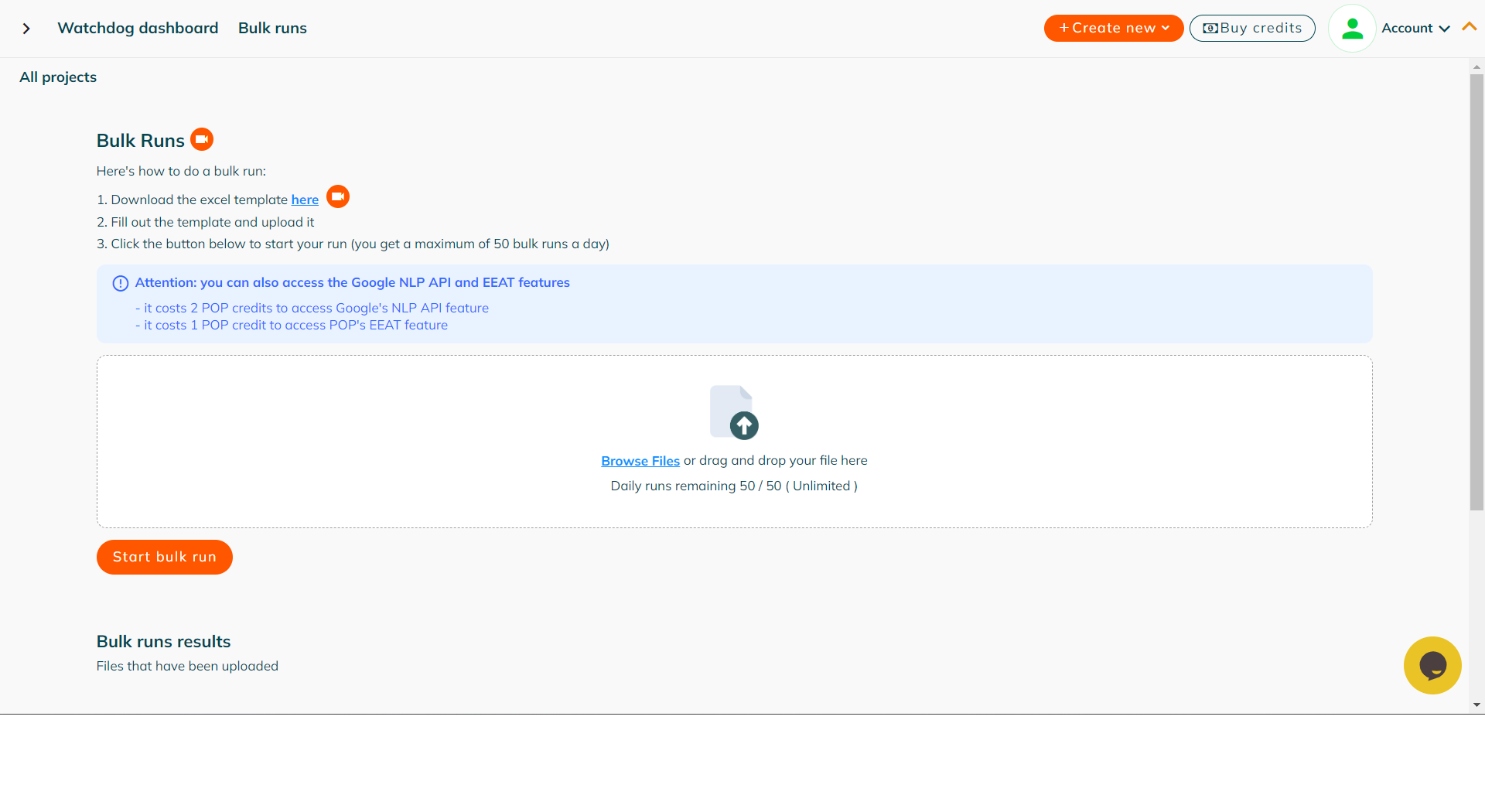
Your screen should now resemble the screenshot below. If you get lost, you can always learn how to navigate to the Bulk Projects menu here.
Step 2: Download the Bulk Runs Template
Once you are within the Bulk Projects menu, you must then download the Bulk Runs Template, from step one. You can do so by clicking the underlined "here" text.
Step 3: Fill Out the Bulk Runs Template
After you have downloaded the Bulk Runs Template, you'll need to populate it with the specific information for the runs you wish to conduct. For detailed guidance on completing the template, refer to our instructional video here.
Step 4: Upload the Template to PageOptimizer Pro
After meticulously filling out your Bulk Runs Template, proceed to upload it back into PageOptimizer Pro. Simply click on the underlined 'Browse Files' text and select the template file you've completed.
Step 5: Initiate the Bulk Run
With your template uploaded, take the final step by clicking the 'Start bulk run' button within the interface.
Step 6: Automatic Report Generation
After initiating the bulk run, PageOptimizer Pro will take over the process, automatically generating reports based on the information provided in your template.
By following these step-by-step instructions, you'll seamlessly generate bulk reports using PageOptimizer Pro, streamlining your SEO data analysis workflow.
Can I use any of POP's other features when performing a bulk run?
Absolutely, Bulk Reports empower you to efficiently generate Google NLP data, EEAT data, while enriching the content with elements such as FAQs, tables, lists, and more!
It's crucial to keep in mind that each of these features incurs POP Credits. Here's the breakdown:
1.) Generating articles with EEAT information will cost an extra 2 POP Credits per article.
2.) Generating articles with Google's NLP will cost an extra 2 POP Credits per article.
3.) Utilizing the AI Writer for content creation will cost an additional 4 POP Credits per 1000 words.
4.) Requesting Enriched Content generation will add 1 additional POP Credit per piece.
However, you have the opportunity to reduce the cost of the AI Writer to just 1 additional POP Credit total, including Enriched Content, if you have a GPT-4 API Key linked to your account. Which you can learn more about here.
If written instructions aren't your thing, you can always learn how to set up the bulk run sheet in a video format below. Our YouTube channel is an excellent place to get updates on the tool, how it's features work, deals, and more.