
Introducing the Workstation
Take charge, and organize your team
With the recent updates to PageOptimizer Pro, we introduced a brand new (more so revised) tab. This tab is the Workstation tab, in it you can manage tasks for your team, assign due dates, and keep track of things you’ve already done.
Track your progress
We’ll explain how to use these features in the article below.
Track your progress
With the new workstation tab you are able to track your progress with tasks over time. This includes the addition of new tasks, completion of tasks, incomplete tasks, and tasks that are in review.
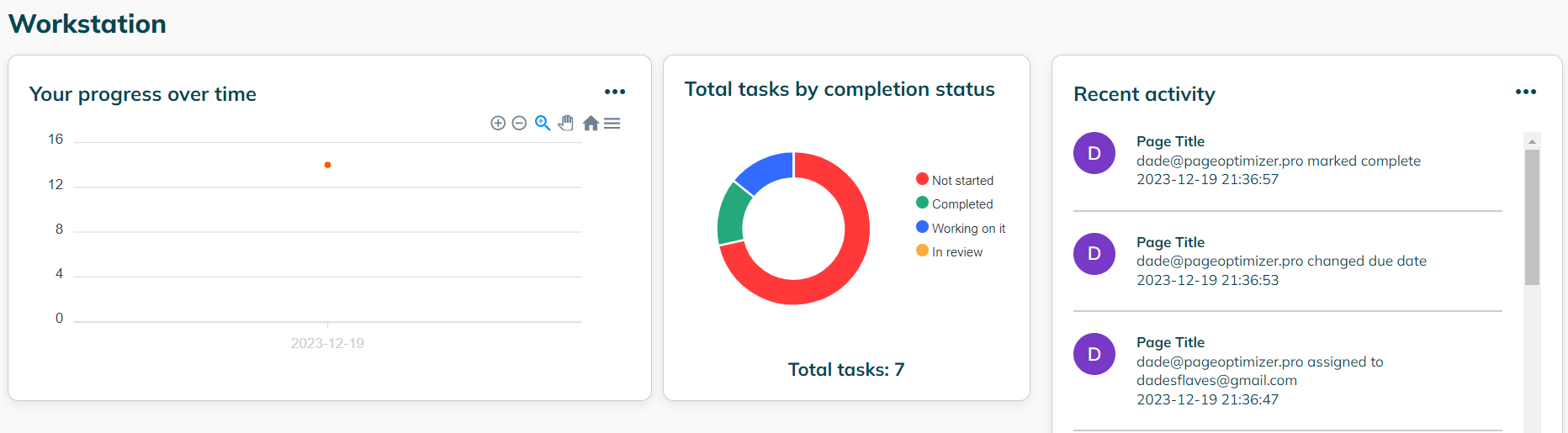
This helps you, and your team keep organized. By selecting the three dot’s button (…) you can also specify the date range you would like to see activity. That isn’t all, you can also download the task activity log in SVG, PNG, and CSV formats. Allowing you to export it to customers, superiors, or keep it for your own records.
Manage Tasks
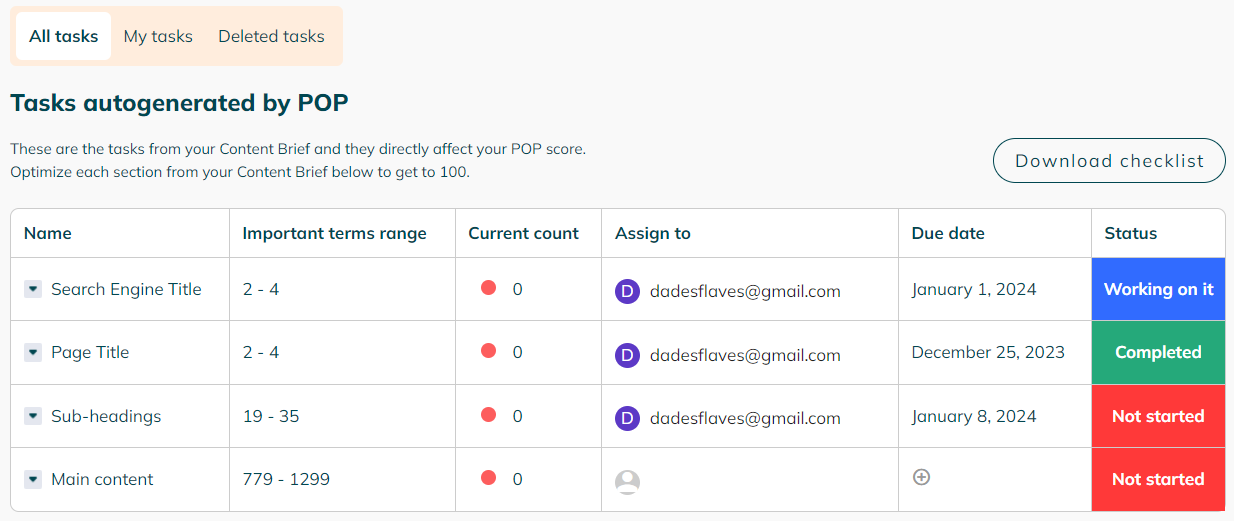
In the workstation tab, you will enjoy the benefits of being able to take notes on each task individually. By clicking the downward facing triangle (▼), then selecting ‘Open task’. You will be taken to that task's notes board.
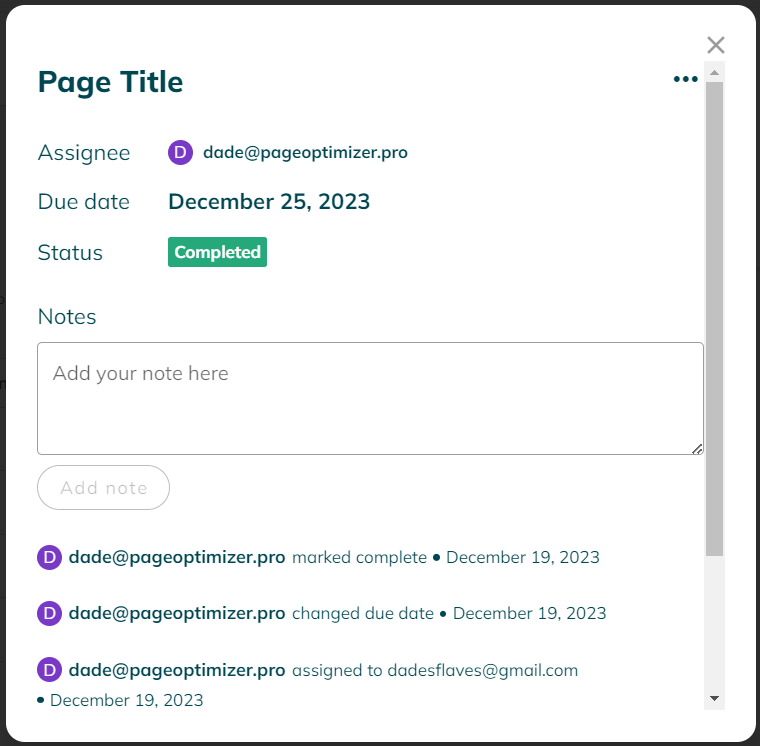
Here, you can examine exactly what is going on with that task. You can view its due date, assignee, status, any notes, as well as the activity for that particular task. This makes communication effortless.
Yes, you read that right. You can assign a due date to each task individually by selecting the plus symbol (+). Your team can also mark each task as Not started, Completed, Working on it, or In review. This gives you a clear picture of what has, and what has not been completed. As well as what step each task is currently in.
Take charge, and organize your team by using the Workstation tab in PageOptimizer Pro today.